
Phase A: Setup
Define event structure, select topics, and identify speaker candidates
Last Updated: 2026-06-13 — Speaker states aligned to the 8-state model (ADR-009 / Epic 11).
Status: Implemented
Duration: 1-2 weeks
Event State Transitions: CREATED → TOPIC_SELECTION → SPEAKER_IDENTIFICATION
Speaker States: N/A → IDENTIFIED (speakers added to pool)
Overview
Phase A establishes the foundation for your event. You’ll define the event format, select topics based on historical data, and brainstorm potential speakers.
Key Deliverable: Event configured with selected topics and identified speaker candidates
Step 1: Event Type Definition
Implemented
Purpose
Define the event format which determines timeline, session count, and speaker requirements.
Accessing Event Creation
Navigate to the Events dashboard and click Create Event.
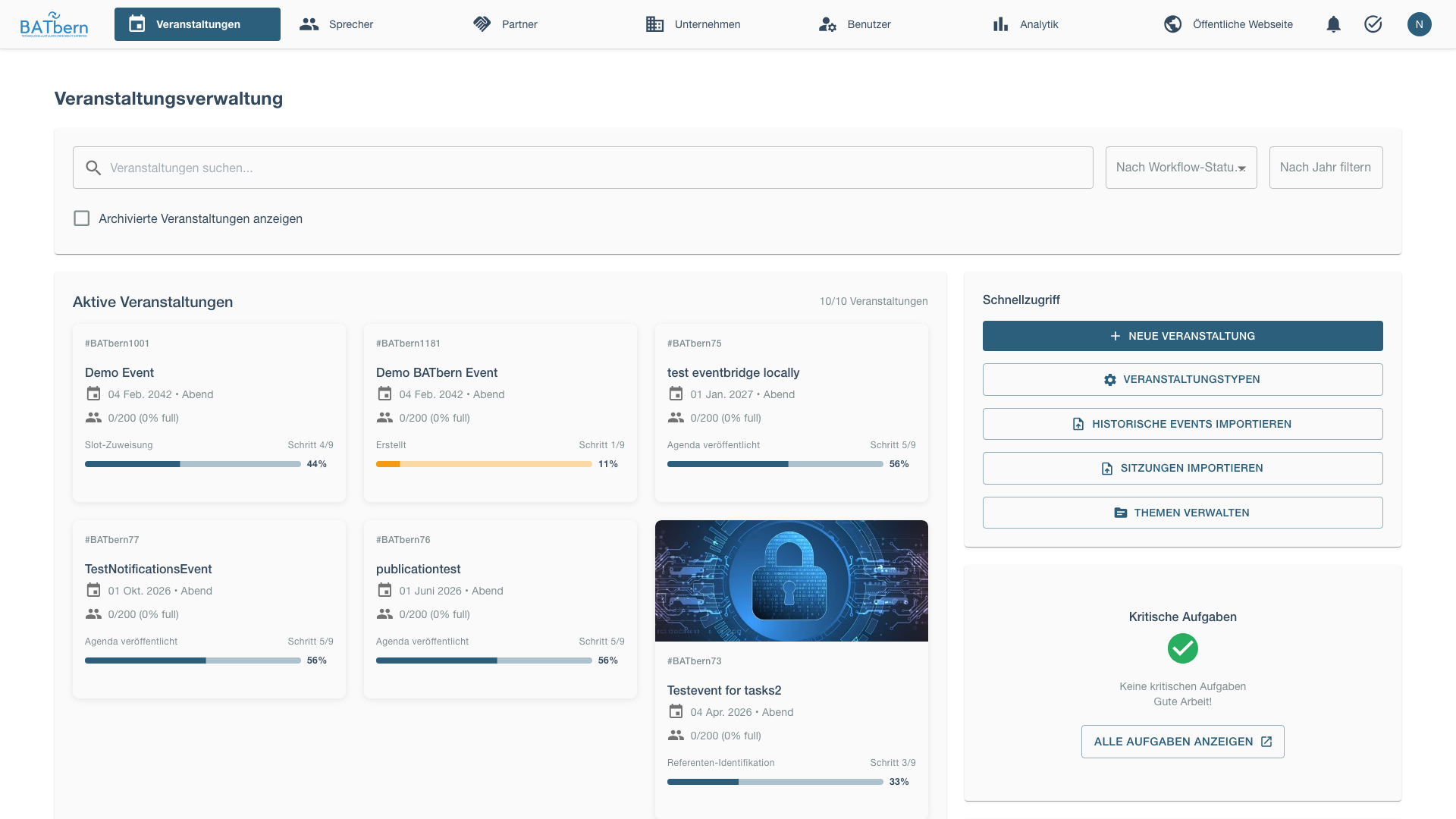
The event creation modal will open with the event configuration form.
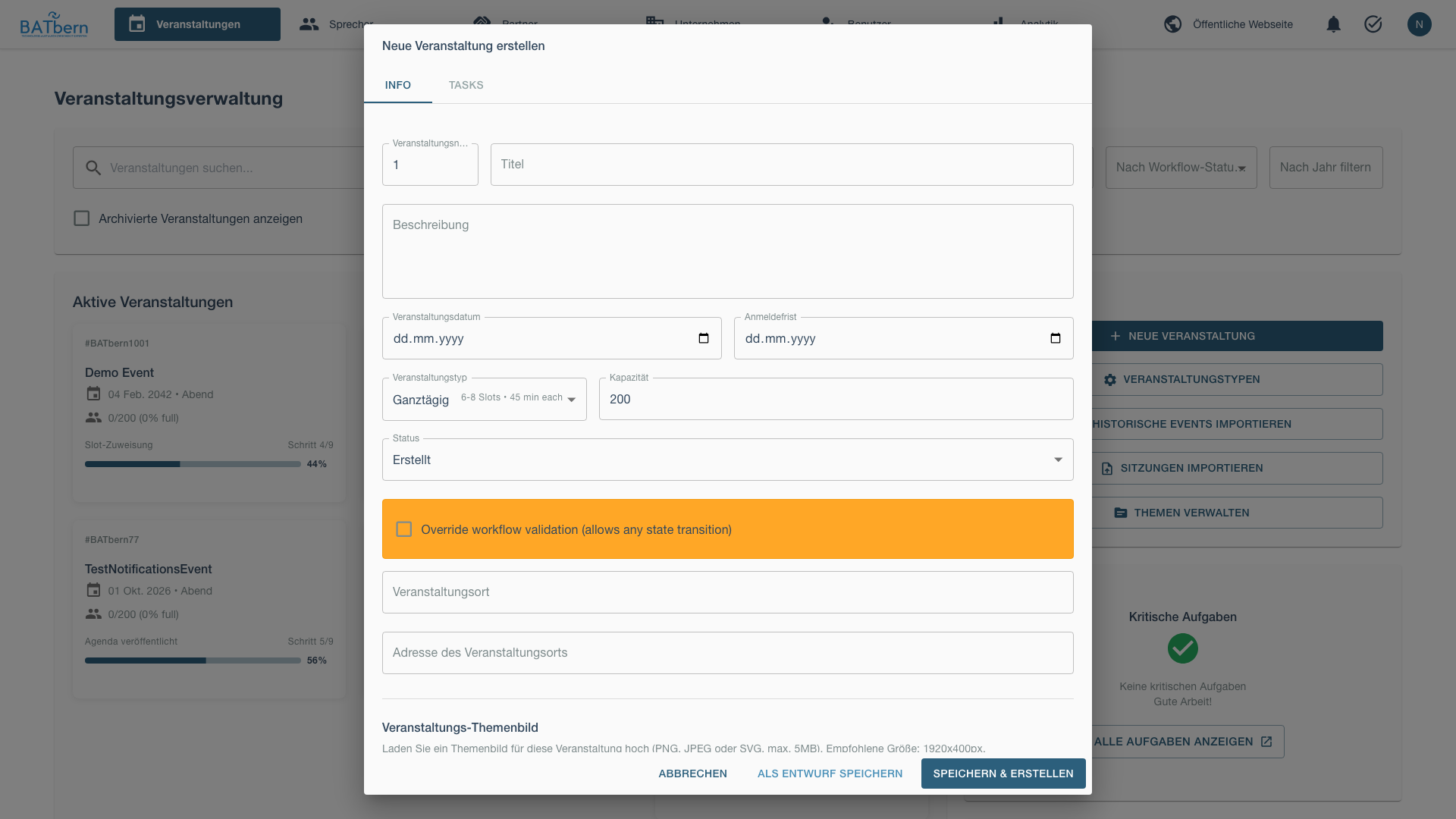
Acceptance Criteria
- ✅ Event type selected (Full-Day, Afternoon, or Evening)
- ✅ Event date and time confirmed
- ✅ Venue identified
- ✅ Registration timeline defined
Event Type Selection
Choose the appropriate format for your conference:
🌞 Full-Day Conference
When to Use:
- Annual flagship BATbern event
- Broad audience appeal (200+ expected attendees)
- Multiple topics to cover
- Budget supports full-day venue rental
Configuration:
- Duration: 8+ hours (e.g., 9:00 - 18:00)
- Sessions: 8-12 presentations
- Speakers Needed: 10-15 speakers
- Parallel Tracks: 2-3 tracks (optional)
- Lead Time: 3-4 months recommended
🌤️ Afternoon Workshop
When to Use:
- Specialized topic deep-dive
- Smaller audience (50-100 attendees)
- Interactive format with Q&A
- Half-day commitment from speakers
Configuration:
- Duration: 3-4 hours (e.g., 14:00 - 18:00)
- Sessions: 2-4 presentations
- Speakers Needed: 3-5 speakers
- Parallel Tracks: Single track
- Lead Time: 6-8 weeks recommended
🌙 Evening Lecture
When to Use:
- Guest speaker or keynote presentation
- Networking-focused event
- Shorter commitment for attendees
- Lower budget / less formal
Configuration:
- Duration: 2-3 hours (e.g., 18:00 - 21:00)
- Sessions: 1-2 presentations
- Speakers Needed: 1-3 speakers
- Parallel Tracks: Single track
- Lead Time: 4-6 weeks recommended
How to Complete
Select Event Type
In the event creation/edit form, select the appropriate type:
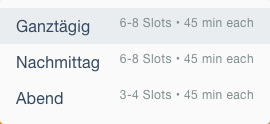
The event type dropdown offers three conference formats: Full-Day Conference (8+ hours with multiple sessions), Afternoon Workshop (3-4 hours focused session), and Evening Lecture (2-3 hours single topic).
Configure Timeline
Set event date and registration windows:
The timeline configuration form includes event date, event time (start and end), registration opening date, and registration closing date. Validation ensures logical sequencing: Registration Opens < Registration Closes < Event Date.
Validation ensures logical timeline: Opens < Closes < Event Date
Specify Venue
Enter venue details:
The venue information form collects venue name, street address, city, canton (dropdown for Swiss cantons), and postal code. City is a required field.
Save Configuration
After filling all required fields, the form should look like this:
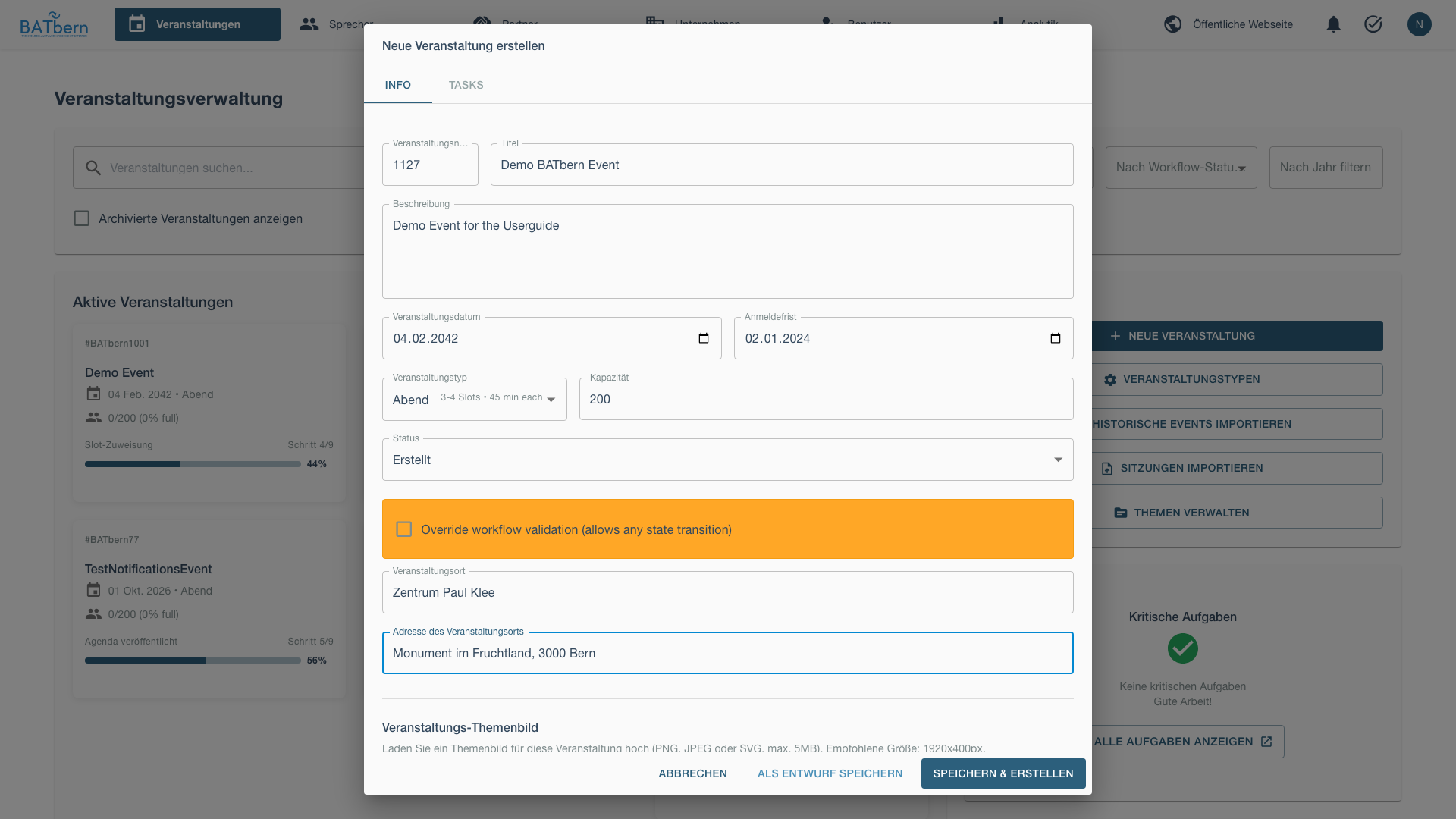
Click Save & Continue to Step 2.
Event state: CREATED (ready for topic selection)
Auto-created Tasks: None yet (tasks auto-create when event reaches TOPIC_SELECTION)
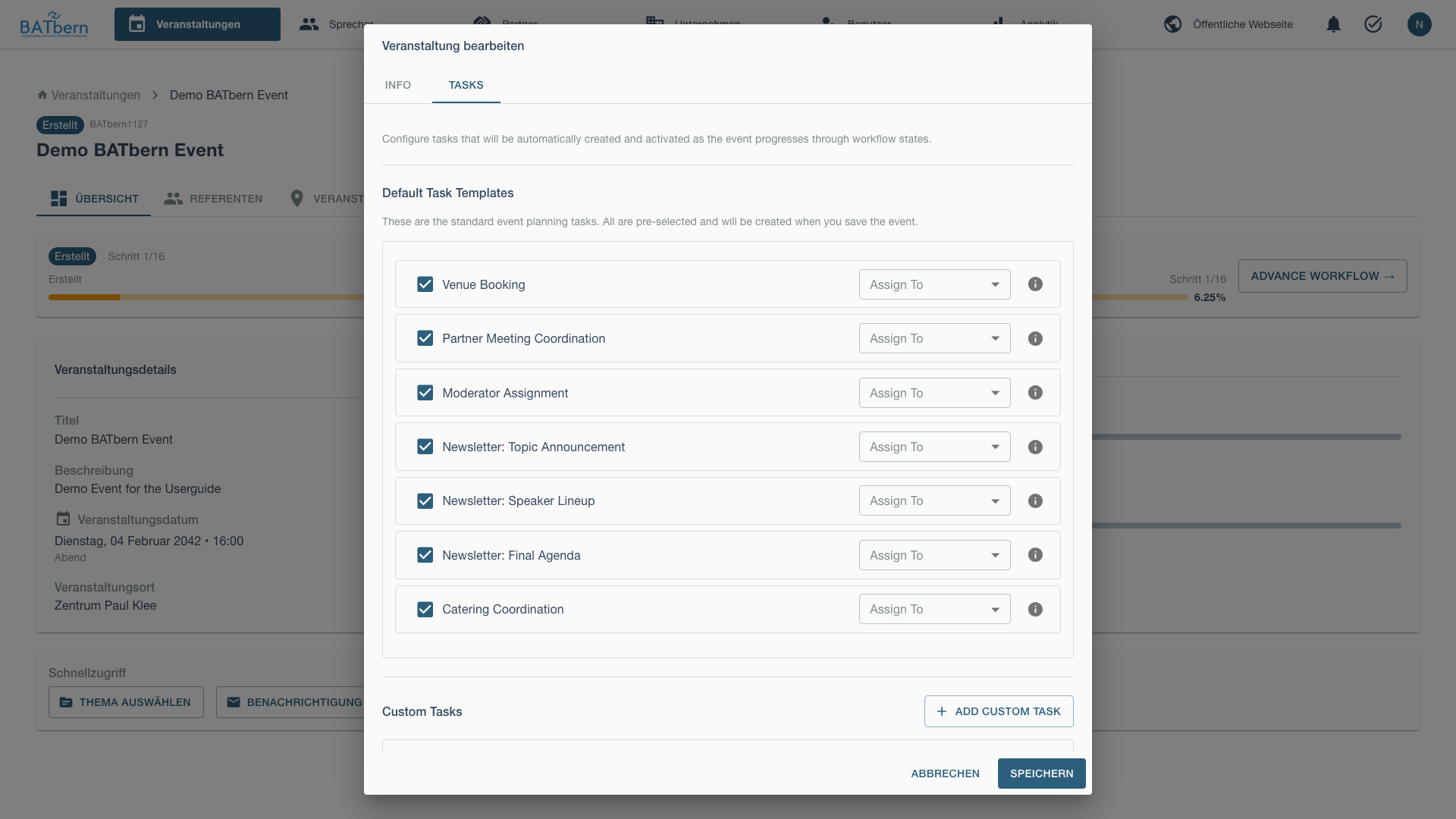
Assigning Tasks to Organizers
After creating the event, you can assign tasks to team members to distribute the workload.
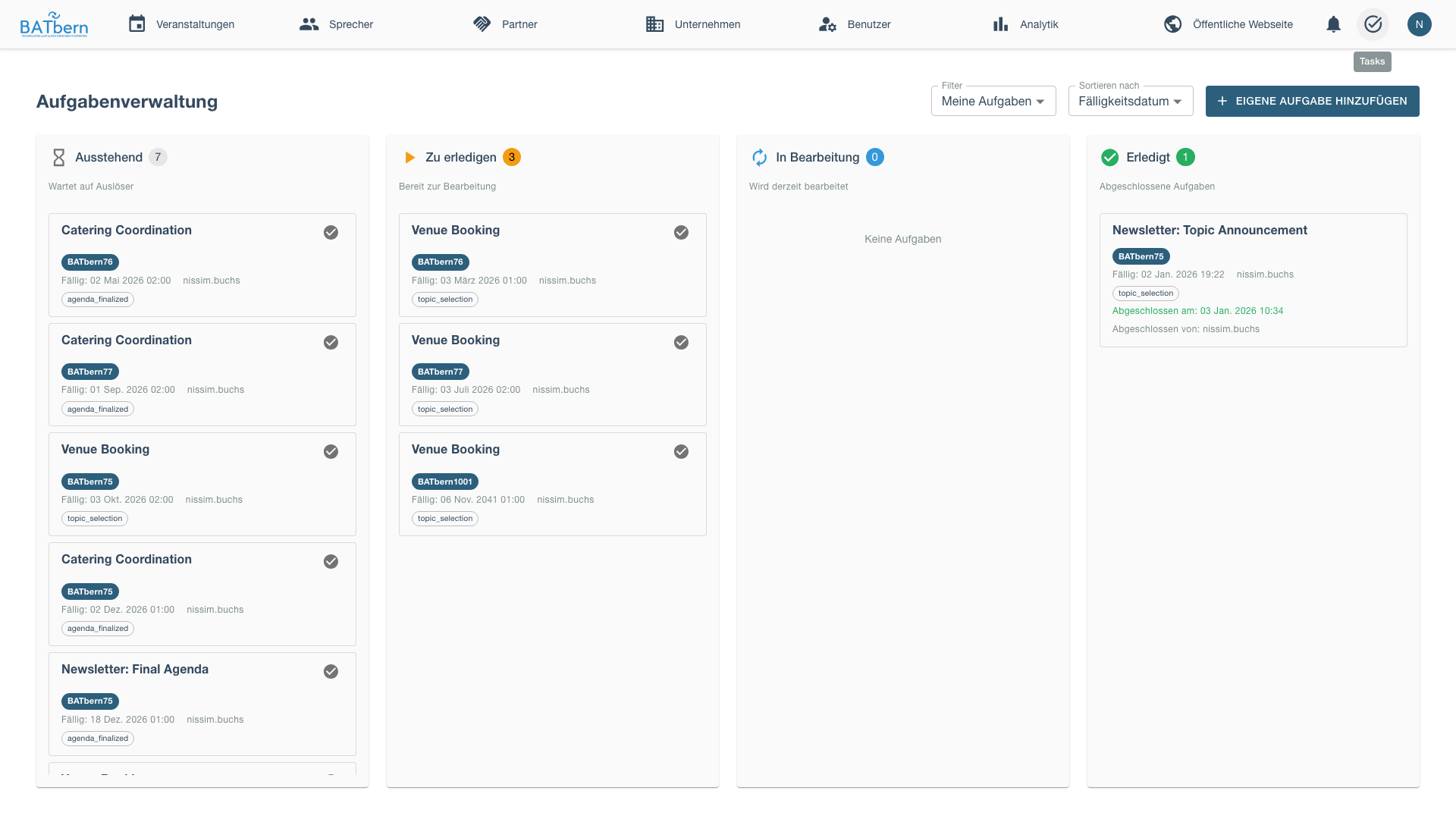
Access the task list to view and manage assigned tasks.
Step 2: Topic Selection with Heat Map
Implemented
Purpose
Select session topics using historical data to inform decisions and avoid topic fatigue.
Acceptance Criteria
- ✅ Minimum topics selected based on event type:
- Full-Day: 8-12 topics
- Afternoon: 2-4 topics
- Evening: 1-2 topics
- ✅ Topics reviewed for balance (not all from same category)
- ✅ Historical context considered via heat map
Topic Heat Map
Implemented
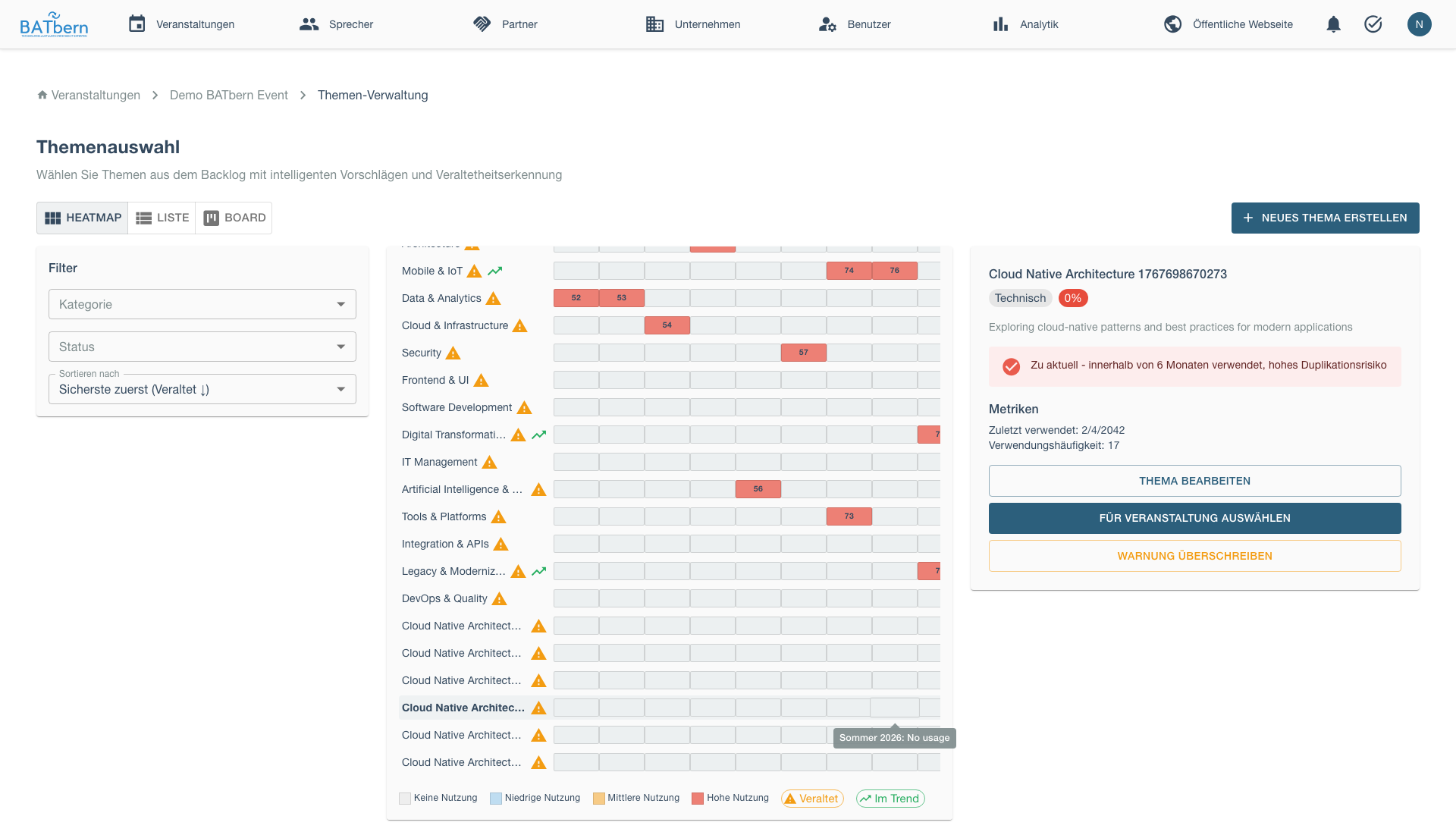
The Topic Heat Map visualizes 20+ years of BATbern conference history, showing topic frequency over time.
How the Heat Map Works
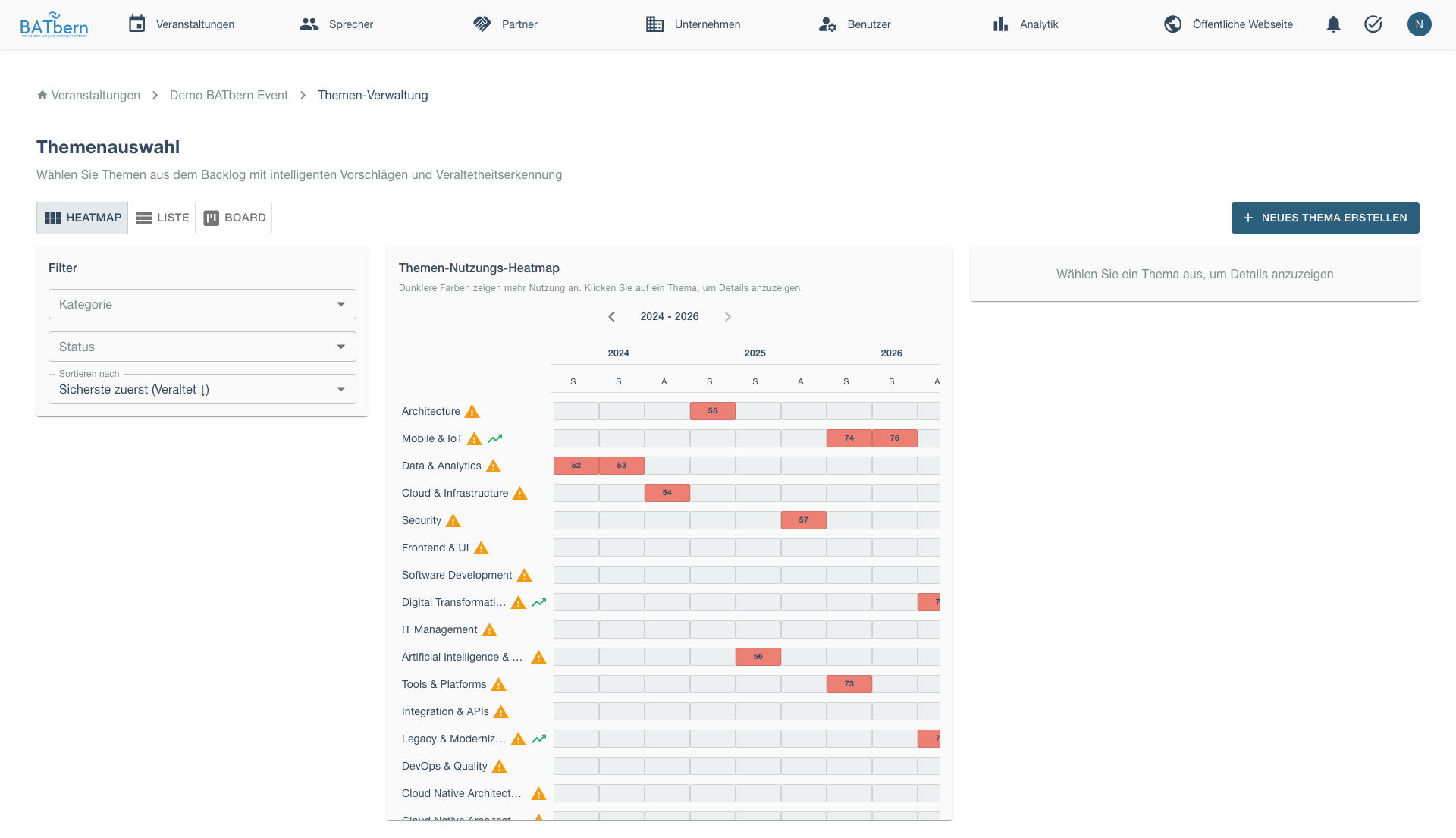
The Topic Heat Map visualizes historical topic coverage across 20+ years of BATbern conferences. Topics are organized by category (rows) and time periods (columns). Color intensity indicates presentation frequency: dark blue for frequently presented topics (4+ times), light blue for occasional topics (1-3 times), and white for topics never or rarely presented.
Color Coding:
- Dark Blue: Frequent topic (presented 4+ times in 5-year period)
- Light Blue: Occasional topic (1-3 times)
- White: Never or rarely presented
Interpreting the Heat Map
Popular Topics (Dark Blue columns):
- ✅ Proven audience interest
- ⚠️ Risk of topic fatigue if presented too often
- Consider new angles or subtopics
Emerging Topics (White → Light Blue transition):
- ✅ Fresh content, likely high interest
- ✅ Opportunity to be ahead of trends
- Consider pairing with established speakers
Declining Topics (Dark → Light Blue transition):
- ⚠️ May indicate waning interest
- Consider retiring or significantly updating
Consistently Popular (Dark Blue across all periods):
- ✅ Safe, reliable topics
- Ensure fresh perspective each time
- Examples: Sustainable Building, Energy Efficiency
Topic Categories
Topics are organized into categories:
Design & Aesthetics:
- Minimalist Design
- Swiss Architecture
- Color Theory in Architecture
Technology & Innovation:
- Digital Transformation
- BIM and Digital Twins
- Smart Buildings
- Computational Design
Sustainability:
- Sustainable Building Materials
- Energy Efficiency
- Circular Economy
- Net-Zero Buildings
Urban & Regional:
- Urban Planning
- Public Spaces
- Transportation Integration
- Regional Development
Heritage & History:
- Heritage Preservation
- Adaptive Reuse
- Historical Context
Practice & Business:
- Project Management
- Client Relations
- Practice Development
How to Complete
Open Heat Map
In Step 2 of the workflow, click View Topic Heat Map.
Interactive heat map opens showing historical data.
Explore Historical Trends
Hover over cells to see details:
Hovering over a heat map cell reveals detailed statistics: number of presentations, speakers (including panel sessions), average audience rating, and average attendance. Click on a year cell to view individual presentation details.
Click year to see presentation details.
Select Topics
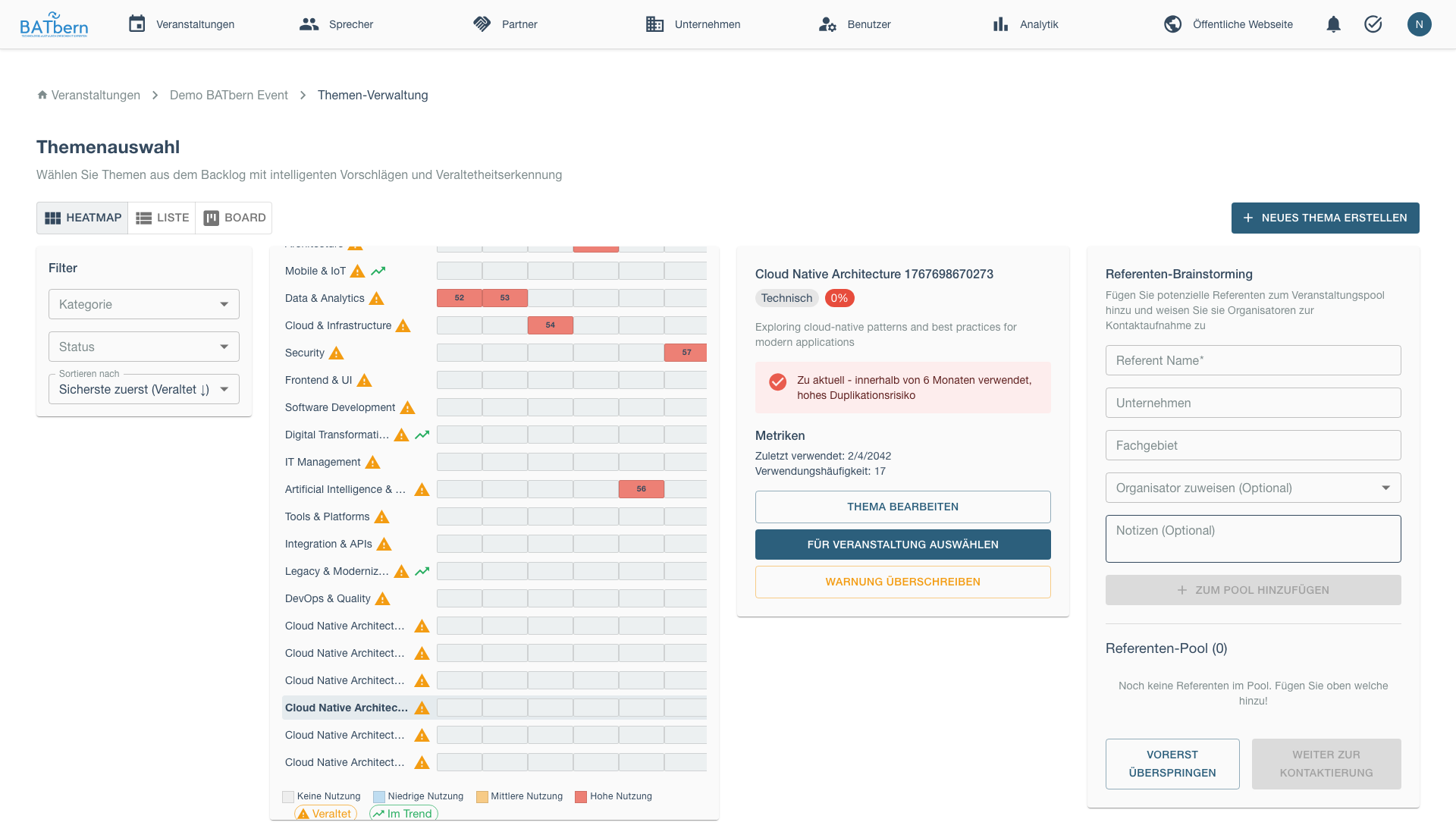
Open the topic selection interface:
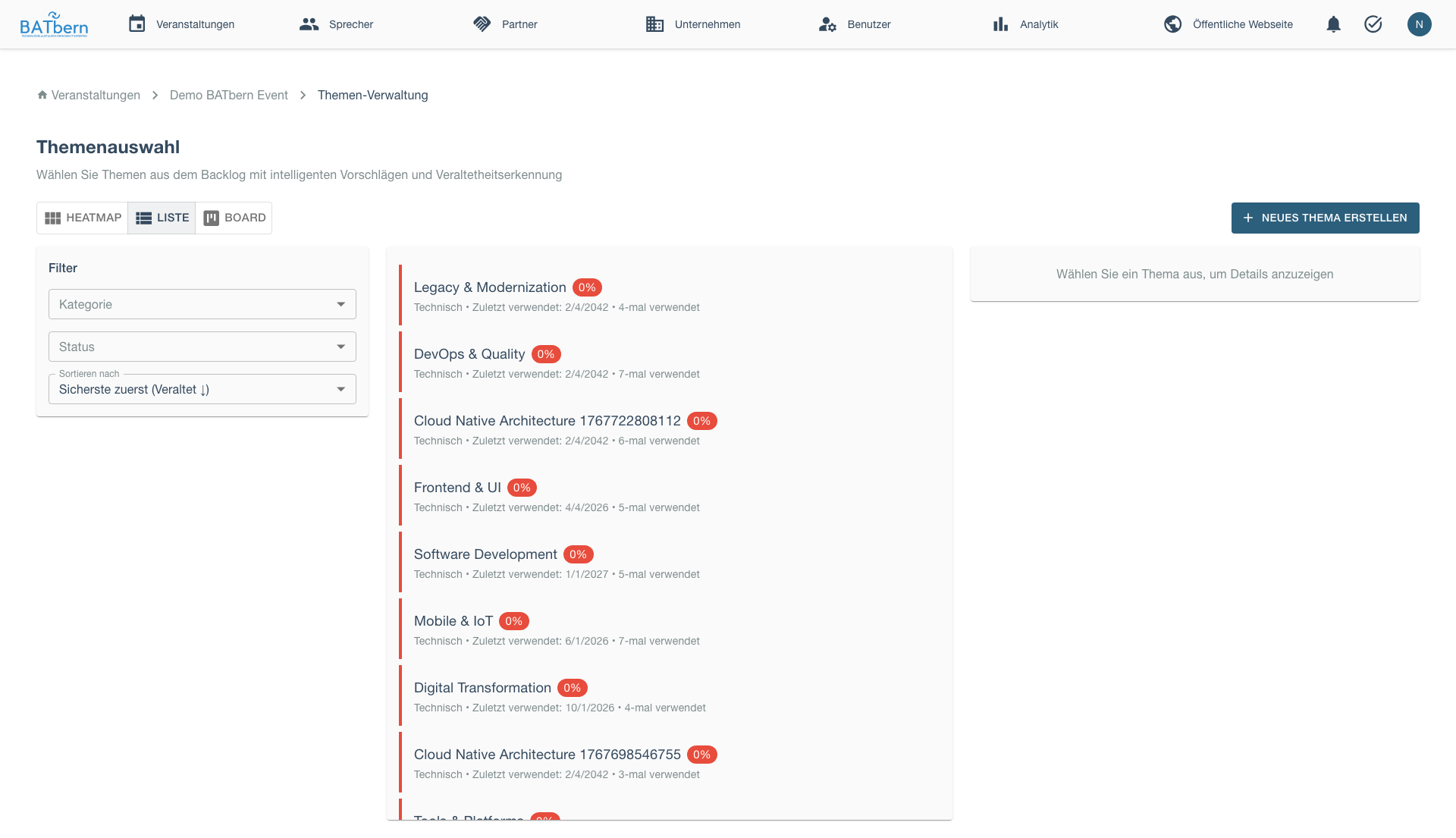
Click topics to add to your event:
The selected topics checklist shows your current topic selections with a progress indicator (e.g., “4 of 8 required”). Each selected topic displays with a checkmark and a [Remove] button. An [+ Add Another Topic] button allows adding more topics until the minimum requirement is met.
Add minimum required for your event type.
Review Balance
Ensure topic diversity:
- ✅ Mix of popular and emerging topics
- ✅ Balance across categories (not all Technology)
- ✅ Variety in presentation formats (case studies, theory, practice)
Confirm Selection
Click Confirm Topic Selection.
Event state: CREATED → SPEAKER_IDENTIFICATION
Note: Selecting a topic from CREATED state transitions the event directly to SPEAKER_IDENTIFICATION. TOPIC_SELECTION is a valid starting state for events created that way, but is not a mandatory intermediate stop when transitioning from CREATED.
Auto-created Tasks:
- Venue Booking (due: 90 days before event)
- Partner Meeting (due: event day)
- Moderator Assignment (due: 14 days before event)
- Newsletter: Topic (due: immediately)
Topic Selection Tips
Aim for Variety:
The topic balance indicator shows examples of good vs. poor topic distribution. Good balance includes diverse categories (Sustainability, Technology, Urban & Regional, Heritage). Poor balance concentrates all topics in a single category (e.g., all Technology topics like BIM, Smart Buildings, Digital Twins).
Consider Event Type:
- Full-Day: Mix of broad appeal and specialized topics
- Afternoon: Focused theme with related topics
- Evening: Single compelling topic or contrasting pair
Leverage Heat Map Insights:
- Avoid topics presented last year (unless new angle)
- Identify 5+ year gaps as re-introduction opportunities
- Note which topics consistently draw high attendance
Step 3: Speaker Brainstorming
Implemented
Purpose
Identify potential speakers for each selected topic, creating a pool of candidates for outreach in Phase B.
Acceptance Criteria
- ✅ Each topic has 2-3 candidate speakers identified
- ✅ Total candidates = 2× needed speakers (e.g., 20 candidates for 10 speaker slots)
- ✅ Candidate diversity considered (companies, experience levels, demographics)
- ✅ Contact information captured (email minimum)
Candidate Sources
Past Speakers:
- Review historical speaker database
- Filter by topic expertise
- Check availability (not presented recently)
Company Referrals:
- Ask partner companies for recommendations
- Leverage user/company database
- Contact industry associations
Industry Experts:
- LinkedIn searches
- Industry publications and blogs
- Conference speaker rosters (other events)
Internal Knowledge:
- Organizer team recommendations
- Board member suggestions
- Partner company employees
How to Complete
Select Topic
In Step 3, choose a topic to brainstorm speakers:
The topic speaker status overview displays all selected topics with their current speaker candidate count. Topics are shown with visual indicators: ✅ for topics with adequate candidates (3+), ⚠️ for topics with insufficient candidates (0-2). Click any topic to add speaker candidates.
Click topic to add speaker candidates.
Add Candidate
Click + Add Speaker Candidate to open the brainstorming form.
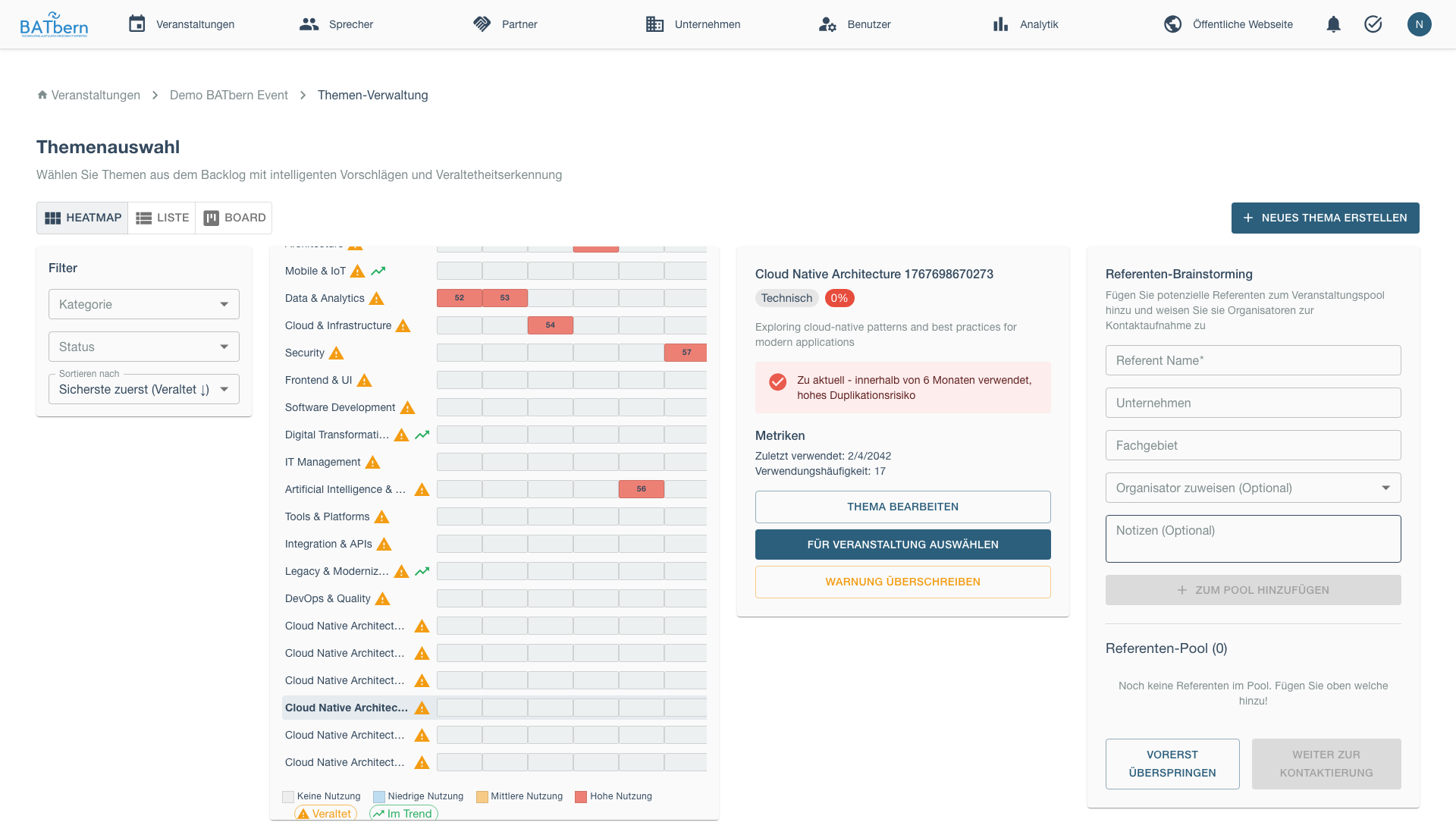
The speaker brainstorming form collects candidate information: First Name, Last Name, Email (required fields), Company (with autocomplete search), Expertise Match (High/Medium/Low dropdown), Notes (optional, for recording speaker background or presentation history), and Source (Past Speaker, Company Referral, Industry Expert, or Internal). Candidates are created with status IDENTIFIED.
Candidate is created with status: IDENTIFIED
No account is created here. A brainstormed candidate is just a name on the pool list — no User, no SPEAKER role, no Cognito account. Provisioning happens later, only when an organizer promotes the chosen speaker to
READY(Phase B). See Speaker Workflow →.
Repeat for All Topics
Add 2-3 candidates per topic. After adding candidates, the topic displays the candidate list showing names, expertise match level, and contact information, with an option to add more candidates.
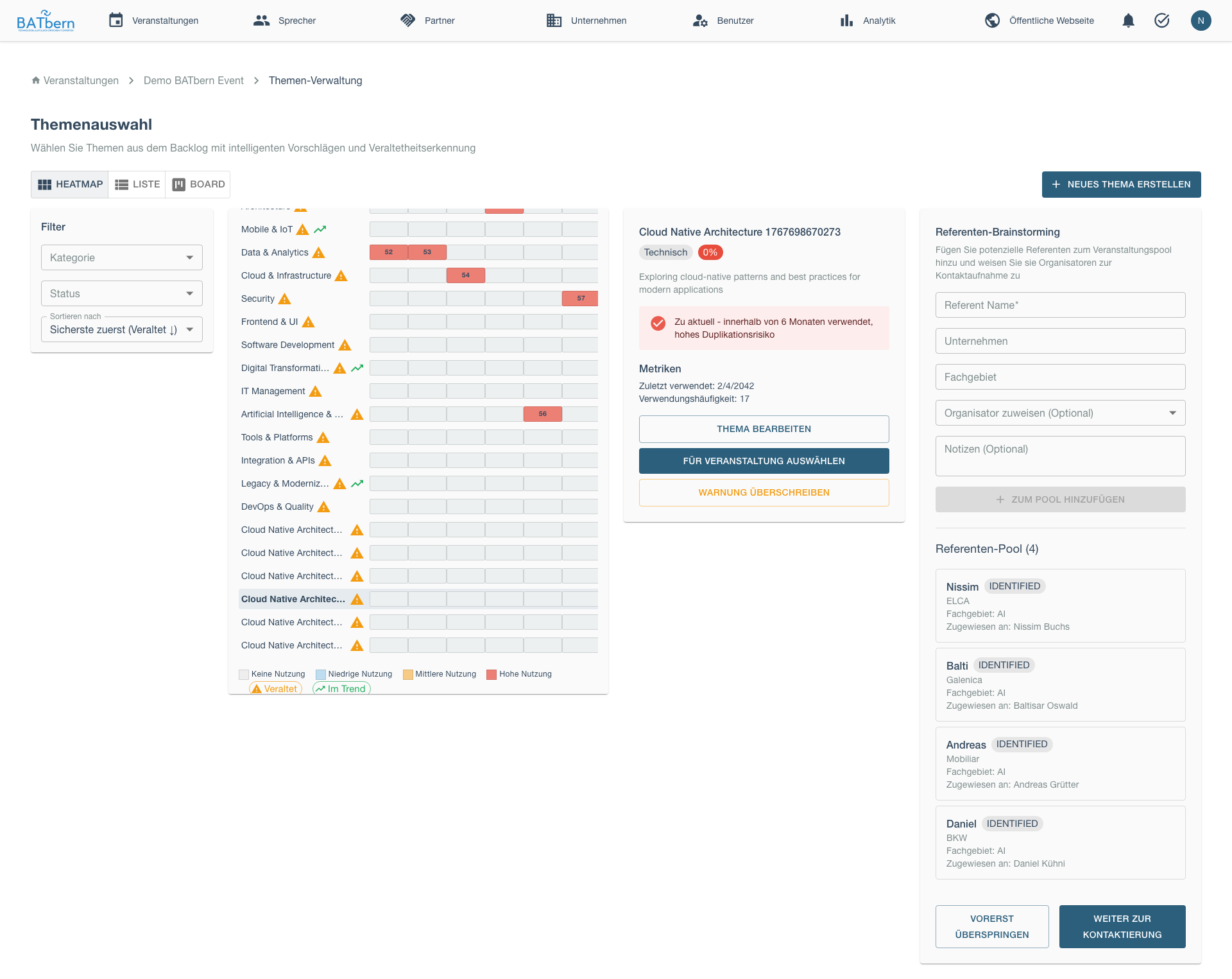
Review Candidate Pool
View all candidates across topics. The Speaker Candidate Summary displays: Total Candidates count, Speakers Needed count, Candidate-to-Speaker Ratio (✅ if 2:1 or better), breakdown by Company (highlighting over-representation from single companies), breakdown by Experience/Match Level (High/Medium/Low), and Diversity Warnings (alerts when too many candidates come from the same company).
Confirm Brainstorming Complete
Once minimum candidates identified, click Complete Brainstorming.
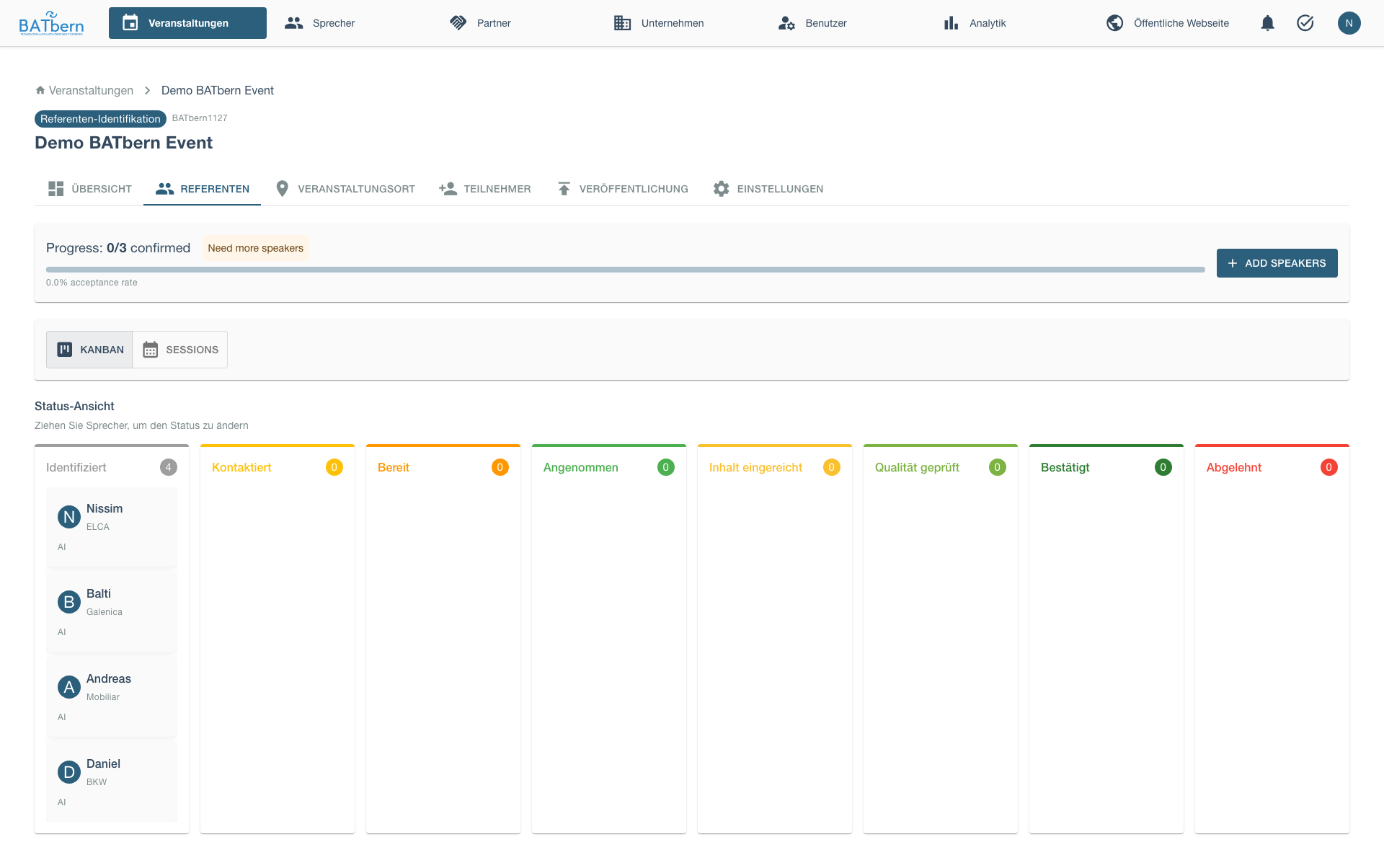
Event state: TOPIC_SELECTION → SPEAKER_IDENTIFICATION
Note: Speakers are created with state IDENTIFIED and stored in the speaker_pool table.
Phase A is complete! ✅
Where else
IDENTIFIEDcandidates come from (Epic 7):
- Speaker self-nomination (Story 7.2) — once the event’s topic is set and published, logged-in attendees can self-nominate (“I could speak on that”) with a proposed session title + abstract. Each nomination creates a
speaker_poolentry atIDENTIFIED, appearing alongside your brainstormed candidates for triage through the normal 8-state workflow. No account is provisioned at nomination.- Topics from the floor (Story 7.1) — logged-in attendees suggest future topics into the topic-suggestion pool, tagged
source = community. These surface in the topic-selection admin UI (Step 2) with a community badge for organizers to triage; they do not create speaker-pool entries.
Brainstorming Tips
Target 2:1 Ratio:
- Identify 2× candidates per needed speaker
- Provides backup if speakers decline
- Allows selectivity based on responses
Consider Diversity:
- Company: Avoid 3+ speakers from same firm
- Experience: Mix established and emerging voices
- Gender: Aim for balanced representation
- Geography: Include speakers from different regions
Prioritize Candidates:
High Priority (contact first):
- Past speakers with excellent ratings
- Industry thought leaders
- Strong topic-expertise match

Medium Priority (contact if needed):
- New speakers with good credentials
- Medium topic match
- Company referrals

Low Priority (backup):
- Emerging speakers (unproven)
- Low topic match
- Last-resort options
Capture Useful Notes:
- Previous presentation history
- Presentation style (technical, storytelling, visual)
- Availability constraints (e.g., “Not available Fridays”)
- Special requirements (e.g., “Needs translator”)
Phase A Completion
Success Criteria
Before advancing to Phase B, confirm:
- ✅ Event type defined with timeline
- ✅ Topics selected using heat map data
- ✅ Speaker candidates identified (2:1 ratio)
- ✅ Event state = SPEAKER_IDENTIFICATION
- ✅ Auto-created tasks: Venue Booking, Partner Meeting, Moderator Assignment, Newsletter: Topic
What Happens Next
Phase B: Outreach begins automatically:
- Candidates ready for contact (Step 4)
- Outreach tracking system active
- Email templates available
See Phase B: Outreach → to continue.
Troubleshooting Phase A
“Heat map shows no data”
Problem: Heat map displays empty cells.
Solution:
- Historical data may not be imported yet (Epic 3 in progress)
- Proceed with topic selection based on organizer knowledge
- Contact support to import historical data
“Can’t find enough speaker candidates”
Problem: Insufficient candidates for 2:1 ratio.
Solution:
- Expand search to adjacent topics
- Consider emerging speakers (lower experience)
- Extend outreach timeline to allow more research
- Consider reducing event scope (fewer sessions)
“Topics too similar”
Problem: Selected topics lack diversity.
Solution:
- Review heat map for adjacent categories
- Consult topic category list
- Replace 1-2 topics with different categories
- Ensure balance across Design, Technology, Sustainability
Related Topics
- Event Management → - Event configuration
- Topic Heat Map → - Detailed heat map guide
- Speaker Management → - Speaker profiles
- Phase B: Outreach → - Next phase
API Reference
Workflow Endpoints
POST /api/events/{id}/workflow/step-1     Complete Step 1 (Event Type)
POST /api/events/{id}/workflow/step-2     Complete Step 2 (Topic Selection)
POST /api/events/{id}/workflow/step-3     Complete Step 3 (Brainstorming)
GET  /api/topics/heatmap                   Get heat map data
POST /api/speakers                         Create speaker candidate
See API Documentation for complete specifications.